Toolbar and tool palette
CueMol3 has two rows of buttons with different roles.
| Toolbar | Tool palette | |
|---|---|---|
| Position | Top of the window | Floats at the left edge of the molecular view |
| Role | Commands that are executed immediately when pressed | Switch the operation mode of the molecular view |
Toolbar

| Button | Action | Corresponding menu item |
|---|---|---|
| New Tab | Creates a new tab. | File > New Tab |
| Open File | Opens a file. | File > Open File... |
| Save As | Saves an Object to a file. | File > Save File As... |
| Open Scene | Opens a scene file. | File > Open Scene... |
| Reload Scene | Reloads the scene. | File > Reload Scene |
| Save Scene | Saves the scene. | File > Save Scene |
| Get PDB | Fetches a structure by PDB ID. | File > Get PDB... |
| Render | Opens the rendering window. | Rendering > Image / Movie rendering... |
| Undo | Undoes the last operation. | Edit > Undo |
| Redo | Redoes an undone operation. | Edit > Redo |
- When the window is too narrow, the labels are omitted and only the icons are shown (the name appears in the tooltip).
- When no scene is open, buttons that require a scene are disabled.
- The Render button opens the rendering window but does not change the output mode (still image / movie).
Undo / Redo history dropdown
The Undo / Redo buttons have a history dropdown. Selecting an entry in the list undoes / redoes all operations up to that point at once. The text of each entry is generated from the recorded operations and shows, for example, which Renderer was created or which property was changed (→ Recording and replaying operations).
Tool palette
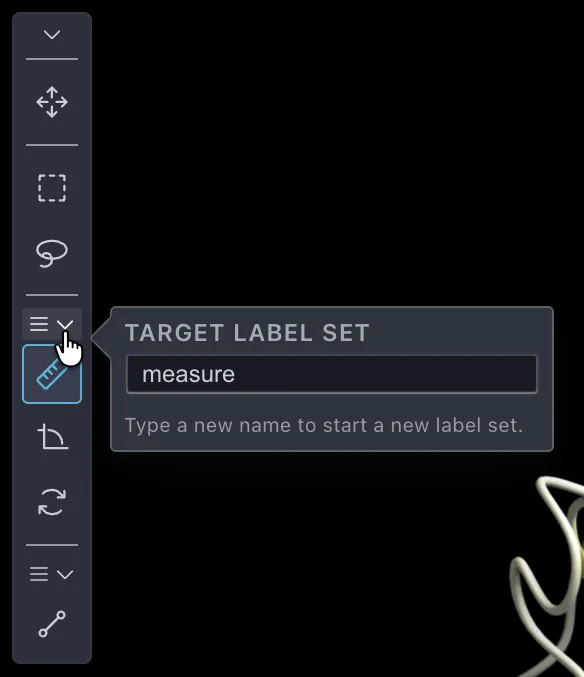
A vertical row of buttons at the left edge of the molecular view. It switches the meaning of clicks and drags in the molecular view. The cursor shape also changes according to the selected tool.
| Group | Tool | Shortcut | Action |
|---|---|---|---|
| Navigate | Navigate | N | View manipulation (default mode) |
| Select | Rect Select | B | Selects atoms in a rectangular region. |
| Lasso | L | Selects atoms with a lasso. | |
| Measure | Distance | D | Click 2 atoms to measure a distance. |
| Angle | A | Click 3 atoms to measure an angle. | |
| Torsion | T | Click 4 atoms to measure a dihedral angle. | |
| Edit | Add Bond | E | Click 2 atoms in the same molecule to add a bond. |
- Pressing Esc resets the clicks accumulated so far.
- Switching tools or views also resets them.
At the top of the palette there is a collapse handle. Pressing it shrinks the palette to just the handle; pressing it again restores the palette. View > Tool palette (Cmd+Shift+P) toggles it in the same way, and the state is kept for the next launch (→ View menu).
Selection tools
Rect Select selects the atoms inside a rectangle, and Lasso selects the atoms inside a free-form polygon.
| Operation | Action |
|---|---|
| Drag | Replaces the selection with the enclosed region. |
| Shift + drag | Adds the enclosed region to the current selection (the cursor shape changes). |
While the Rect Select tool is selected, view manipulation (Navigate) is still available.
Measurement tools
With Distance / Angle / Torsion, clicking the required number of atoms adds the measured value as a label in the molecular view. Intermediate clicks are indicated by cross marks.
The measurement tool group has an option handle; opening it lets you choose the label set to which labels are added.
Measurements can span multiple molecules.
Add Bond tool
Clicking 2 atoms in the same molecule in turn adds a bond. The addition can be undone with Undo.
Opening the option handle of the group shows a list of the non-standard bonds of that molecule, and each row can be deleted. Even when several bonds are deleted together, a single Undo restores them.
Replaces the CueMol2 Mol bond editor
In CueMol2, a modal dialog was opened from the Tools menu, and atom IDs were entered into the input fields while moving the dialog out of the way. In CueMol3, bonds are added by clicking directly in the molecular view, and the menu item has been removed.
Verified against: CueMol3 2.4.0.546