Mouse and trackpad input
This page describes how to manipulate the view in the molecular view, and how the object under the pointer is handled.
Default operations
These are the operations when the Navigate tool (the default) is selected in the tool palette.
| Operation | Action |
|---|---|
| Left drag | Rotate |
| Wheel | Zoom |
Change from CueMol2: the wheel zooms
For a while during the migration, the wheel was assigned to translation. It has now been restored to wheel = zoom.
Pointing device setting
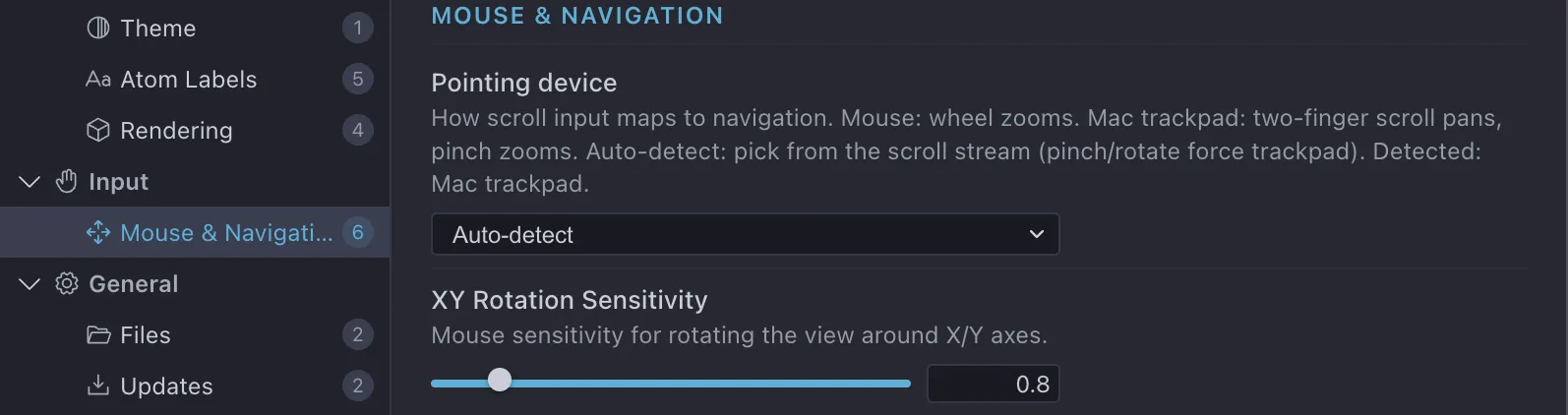
Mice and trackpads call for opposite behavior from scrolling (a mouse wheel should zoom, but a two-finger scroll on a trackpad should translate). In CueMol3, specify which to use with Pointing device in Settings > Input > Mouse & Navigation.
| Setting | Behavior |
|---|---|
| Auto-detect (default) | Automatically determines whether the device is a mouse or a trackpad from the characteristics of the scrolling |
| Mouse | The wheel zooms |
| Mac trackpad | Two-finger scroll translates; pinch zooms |
Auto-detection is an estimate
The OS provides no way to know the device type, so Auto-detect is an estimate based on the characteristics of scroll events (whether there is a horizontal component, whether values are integers or fractions, whether pinch or rotate gestures occur, and so on). A mouse with a high-resolution wheel may be judged to be a trackpad, or the reverse. In that case, select Mouse / Mac trackpad explicitly. The detection result is shown in the settings screen.
Sensitivity and precision settings
Settings > Input > Mouse & Navigation has the following settings.
| Setting | Description |
|---|---|
| Pointing device | The pointing device type described above |
| XY Rotation Sensitivity | Sensitivity of rotation around the X / Y axes (0.1 to 5.0) |
| Pick Precision | Tolerance radius when picking an atom or Object by clicking (pixels, 1 to 50) |
| GPU Picking | Hit-testing method (see below) |
| Hover Info | Display of what is under the pointer (see below) |
| Hover Highlight | Highlighting of what is under the pointer (see below) |
Picking and hover display
This section explains how CueMol determines the object the pointer is pointing at in the molecular view, and how it shows it.
Hits match the drawn shape
Click hit-testing is performed against the shape the Renderer actually drew. The same shape that was drawn is redrawn on the GPU, and the element that owns the pixel under the pointer is read back. With cartoon / ribbon / tube, clicking anywhere on the band hits that residue.
| Hit-testing method | Targets |
|---|---|
| Drawn shape | cartoon / tube / ribbon / spline / nucl / trace / tracestick / cpk / anisou / ballstick / simple / dsurface |
| Atom position | Molecules generated by symmetry operations (symm) |
dsurface (a molecular surface computed directly from the molecule) is a target only when the drawing mode is Fill. The atom that owns the point on the surface is picked, and the faces around that atom are highlighted. Wireframe and Dots are not targets (→ dsurface).
Only dsurface is a target; molsurf is not. A molecular surface generated with Tools > Mol surface generation... is created as an Object (MolSurfObj) separate from the molecule (MolCoord), and molsurf, which draws it, is a Renderer that targets that surface Object, not the molecule. Even if the shapes look the same, the molecule's atoms cannot be traced from a point on the surface (→ MolSurfObj).
Labels and atomic interactions (atomintr) are not click targets either.
Hit-testing used to rely on atom positions only
Previously, the Renderer registered one point per atom (for backbone-type Renderers such as cartoon, one per residue, at the CA position) and the one nearest the pointer was searched for. As a result, the center of a wide ribbon was treated as "nothing there", and it could be picked only by aiming near the CA.
Rectangle selection and lasso selection still use atom-position hit-testing. How to enclose items in cartoon and similar Renderers is unchanged (→ Toolbar and tool palette).
Anything farther back than the position where it fades out of sight in fog is no longer picked. Previously, clicking where nothing was visible could hit a shape behind.
The value of Pick Precision is used as the search range around the pointer in both methods.
Showing what is under the pointer
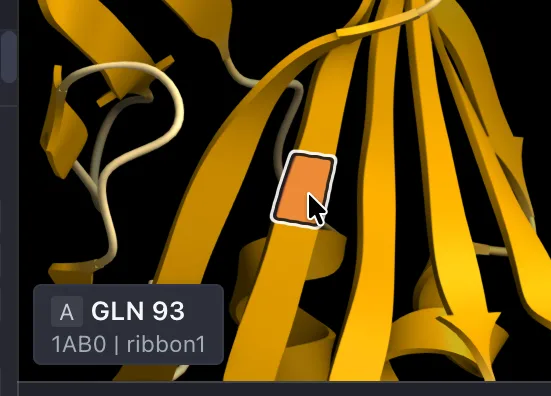
When the pointer moves over the molecular view, what is under it is shown in a small chip at the lower left.
- The first line shows a chain-name badge and the residue (
ALA 10). For atom-level Renderers, the atom name follows (ALA 10 CA). cartoon / ribbon / tube / spline / nucl / trace have bands that represent residues, so no atom name is shown (the same applies to tracestick). - The second line shows the Object and Renderer the element belongs to (
1crn | cartoon1). For a molecule generated by symmetry operations, the name of the symmetry operation follows.
The chip is transparent to clicks, so it does not interfere with operating on what is under it. The display is kept while a right-click menu is open, and the item under the pointer is picked again when the menu closes. Even after an operation that moves the view, such as Center at, whatever is now under the pointer is the target.
Highlighting what is under the pointer
The same element is highlighted in the molecular view with a translucent fill and an outline. For backbone-type Renderers such as cartoon, the target is the band of one residue; for atom-level Renderers, it is that single atom.
The scene is not redrawn for this highlight. The accumulation of ambient occlusion and anti-aliasing is preserved, so even in a heavy scene, moving the pointer does not reset the image quality to its initial state (→ Scene).
No highlight appears for molecules generated by symmetry operations or for Renderers whose opacity is 0.6 or lower. Renderers with opacity 0.6 or lower are also transparent to clicks (what is behind them is picked).
Switches
Three switches in Settings > Input > Mouse & Navigation control this (all default to ON; → Settings).
| Setting | Behavior when turned OFF |
|---|---|
| GPU Picking | Reverts to the previous atom-position hit-testing. The change takes effect immediately |
| Hover Info | The chip is no longer shown, and the hit-testing that follows the pointer stops altogether |
| Hover Highlight | Only the highlight is no longer shown. It works when both GPU Picking and Hover Info are ON |
Controlling the view numerically
To adjust the view precisely, use the View > View panel in the left side panel, which lets you specify rotation, translation, zoom and slab numerically (→ Side panels).
Operations for selection and measurement
When a tool other than Navigate is selected in the tool palette, the meaning of clicks and drags in the molecular view changes (→ Toolbar and tool palette).
Keyboard shortcut customization
The key-binding customization available in CueMol2 is not provided in CueMol3.
Verified against: CueMol3 2.3.20.539