User interface
The CueMol3 main window brings all operating surfaces together in a single window. Unlike CueMol2, no separate windows open for individual functions.
Area names
The numbers in the figure correspond to the # column in the table below.
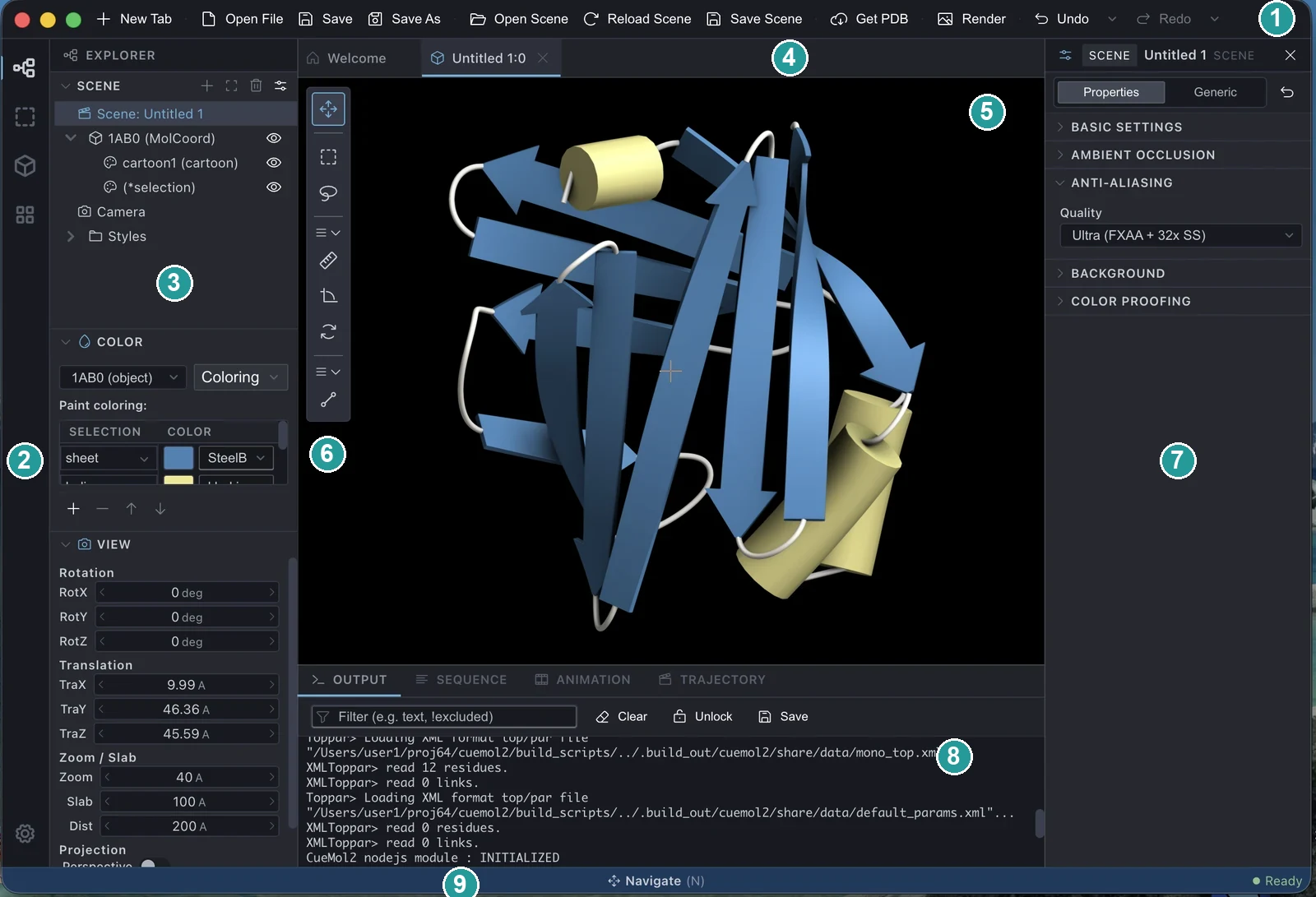
| # | Area | Role | Details |
|---|---|---|---|
| 1 | Toolbar | Buttons for frequently used operations (New Tab / file operations / Get PDB / Render / Undo and Redo) | Toolbar and tool palette |
| 2 | Activity bar | The vertical column of icons at the left edge. Switches what the side panel shows (Explorer / View / Selection / Crystal / Actions, etc.). The gear at the bottom opens the Settings tab | Side panels |
| 3 | Side panel (left) | The group of panels for the purpose selected in the activity bar: scene tree, color settings, molecular structure tree, etc. | Side panels |
| 4 | Tab bar | Switches between the open scenes / views and the Settings tab. Tabs can be reordered by dragging | |
| 5 | Molecular view (MolView) | The main 3D display. The viewpoint is moved with the mouse | Mouse and trackpad input |
| 6 | Tool palette | A vertical column of tool buttons floating at the left edge of the molecular view. Switches between the viewpoint / region selection / measurement / bond editing modes | Toolbar and tool palette |
| 7 | Property inspector (right) | Displays and edits the settings of the element selected in the scene tree. Changes are reflected immediately in the molecular view | Property inspector |
| 8 | Bottom panel | Tabs for Console (command line) / Output (log) / Sequence (sequence) / Animation (timeline). Enabling a plugin adds more tabs | Bottom panel |
| 9 | Status bar | Status display. Plugin items (CLI for Console, MCP for MCP Server) are also listed here. The bell at the right end opens the notification center | tritium_cli / MCP Server / Notification center |
| — | Menu bar | Menus such as File / Edit. On macOS it is in the system menu bar at the top of the screen, so it does not appear in the figure. On Windows / Linux it is at the top of the window | Menus |
Tabs
In CueMol3, scenes and views are arranged as tabs.
- File > New Tab adds a tab for a new scene, or a tab for another view of an existing scene.
- Tabs can be reordered by dragging.
- Settings also opens as a tab (only one in the app).
- The window title is
CueMol3 - <scene name>:<view name>and follows the active tab. CueMol3 does not draw a title bar inside the window, so the title is visible only in macOS Mission Control and the Dock, and in the Windows / Linux taskbar and Alt-Tab.
Difference from CueMol2's multiple windows
There is no equivalent of CueMol2's File > New Window. Because the structure shares a single backend, multiple OS windows cannot be opened. Use New Tab instead (→ Merged, renamed and removed features).
Showing, hiding and resizing panels
- Clicking the selected icon again in the activity bar closes the side panel. Clicking it again opens the panel.
- Each panel within the side panel can be collapsed and expanded by clicking its header.
- Panels can be resized by dragging their borders. The sizes are remembered.
The other window
The rendering window, used for ray tracing and movie output, opens as a top-level window independent of the main window. It is modeless, so the molecular view can be manipulated in the main window while it remains open (→ Rendering window).
Windows can be switched from the Window menu (→ Window / Help menu).
Verified against: CueMol3 2.4.0.546