Console
The Console is a command line for operating CueMol with commands. It is a plugin that is enabled by default and is used from the Console tab of the bottom panel. tritium_cli, which runs the same commands from a terminal, is also bundled (→ tritium_cli).
There are two command modes, switched in the panel.
| Mode | Prompt | Description |
|---|---|---|
| native mode (default) | CueMol> |
Commands for operating CueMol itself. Selections are written with CueMol's selection expressions. Described on this page |
| PyM console | PyM> |
PyMOL-compatible commands (→ PyM console) |
Enabling the plugin
Because it is enabled by default, the Console tab is the first tab of the bottom panel. This tab stays in front until another tab is selected. To stop using it, disable Console in Settings > Plugins > Installed (→ Plugins).
Renamed from PyM console
The PyM console plugin up to 2.3.20.539 became Console in 2.3.21.544. If you had disabled PyM console, Console is enabled anyway, so disable it again if you do not use it. The input history of PyM console is carried over.
Switching modes
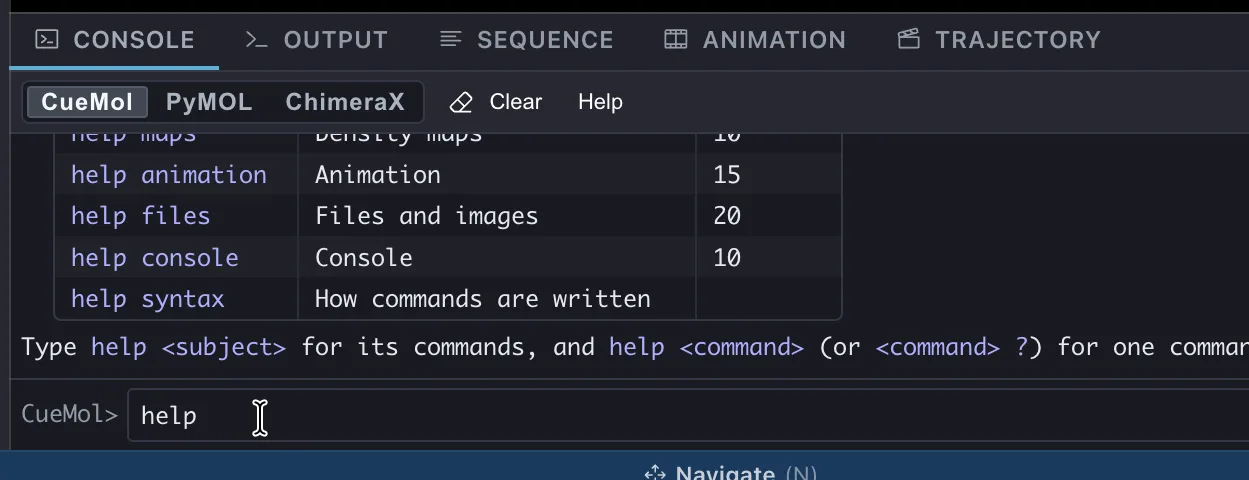
- Use CueMol | PyMOL at the left end of the toolbar. CueMol is the native mode.
- Typing just
nativeorpymolon a line and running it also switches the mode. - The selected mode is remembered, and the next launch starts in that mode.
- The input history is separate for each mode.
Input and completion
| Action | Behavior |
|---|---|
| Enter | Runs the command |
| Shift+Enter | Inserts a line break |
| Tab | Completes the part before the cursor. The part after the cursor is left as is. When there are multiple candidates, a list is shown just above the prompt. Pressing it again while the list is shown opens a menu for choosing a candidate |
| Up / Down | Steps through the input history (when the cursor is on the first / last line) |
- In the candidate menu, Tab / Shift+Tab / the arrow keys move between candidates, and Enter confirms the choice (the command is not run). Esc restores the input as it was before Tab was pressed. Any other key confirms the selected candidate and is then typed. A candidate can also be confirmed by clicking it.
- Pressing Tab on a word containing
*or?expands it to all matches. - In file name completion, names starting with
.become candidates only when.is typed. If nothing matches, the search is retried without distinguishing upper and lower case. Forcd, only directories are candidates. - In native mode, Tab completes command names,
helptopics, argument values (choices and true / false), Object and Renderer names, named selections, color names, Renderer types, property paths, thename=of arguments not yet specified, and file paths (only for arguments that take a path). - One execution is grouped into one Undo.
- Clear on the toolbar clears the log area, and Help runs
helpfor the current mode. - While a command is running, Stop is shown next to "Running...". Pressing it stops before the next command. What has been executed up to that point remains.
Writing native-mode commands
zoom 1crn, chain A and resid 10:20
set 1crn/cartoon1.width, 2
create_renderer 1crn, ballstick, name=bs1
- Write arguments after the command name, separated by commas. An argument can also be given by name in the form
name=value. - Command names take the form "verb_target" (
list_cameras/add_paint, etc.). Commands that are just a noun, such asprops/view/slab, display their contents when typed without a value and set it when given a value. - An Object is specified by name (
1crn), and a Renderer byObjectName/RendererName(1crn/cartoon1). A Renderer name alone is also accepted if it is unique in the scene. Any element can be specified by uid, such as#12. If a name is ambiguous, the command is not run and the candidate uids are displayed. - A property follows the element after a
.(1crn/cartoon1.width,view.centerMark). Scene properties are specified by name only. helpshows the list of topics,help <topic>shows the list of commands in that topic, andhelp <command>or<command> ?shows the syntax and the argument table of that command.help syntaxexplains how to write commands.
Multiple targets and wildcards
Object, Renderer and property paths, and the paths of files to load, can be listed multiple times separated by spaces. The wildcards * and ? can also be used.
hide 1crn 2abc/cartoon1
set */simple1.width, 0.7
load *.pdb ~/pdb/1c*.pdb
get_prop *.visible
- The command is run once for each target. A target that fails produces a warning, and the remaining targets are still run. A pattern that matches nothing produces a
no matches found: <pattern>warning. - Even when multiple targets are listed, the whole line is grouped into one Undo.
- A name containing a space is enclosed in quotation marks (
"my mol"), or the space is preceded by\(my\ mol). A literal*is written\*. props(list_node_props) andget(get_prop) display their results in a table. With multiple targets, the results are combined into one table.
Names containing spaces need quotation marks
Up to 2.3.21.544, Object names, Renderer names and paths containing spaces could be written without quotation marks. From 2.4.0.546, spaces are read as separators.
Supported commands
The native-mode commands are collected by help topic in the Console command list.
Scripts and logs
run fileor@fileruns a text file with one command per line. The whole script is grouped into one Undo.run file.qax(or@file.qax) replays a file of recorded operations (qax). When it is the only thing on the line, each recorded operation becomes one Undo, and replay stops at an operation that fails. When run from inside a script, it is included in the Undo of the whole script (→ Recording and replaying operations).open_logopens a file (log.qaxby default), and from then on the operations performed by subsequent executions are recorded as qax. Executions that did not change the scene are not recorded. A statement written withlogis included as a note.close_logends the recording.list_actionsdisplays each Undo step and the operations performed in it, oldest first.export_actions file[, first[, last]]writes that range to a qax file.- A
.pmlfile (a PyMOL script) cannot be run in native mode. Switch to PyM console to run it.
Using from a terminal (tritium_cli)
tritium_cli is a client that runs Console commands from a terminal. It is bundled with CueMol3. For usage, connection and adding it to PATH, see tritium_cli.
Limitations
- Scene commands (
create_scene/switch_scene/close_scene) andquit/exitcannot be used inside a script. - Python is not accepted.
.py/.pymscripts and lines starting with/are rejected. - Commands cannot be run while an AI Agent instruction or an MCP Server call is being executed.
See also
- Console command list / tritium_cli
- PyM console / MCP Server / AI Agent
- Plugins / Settings reference
- Selection expression syntax
- Recording and replaying operations
- Bottom panel
Verified against: CueMol3 2.4.0.546