Bottom panel
The panel at the bottom of the window has four tabs by default.
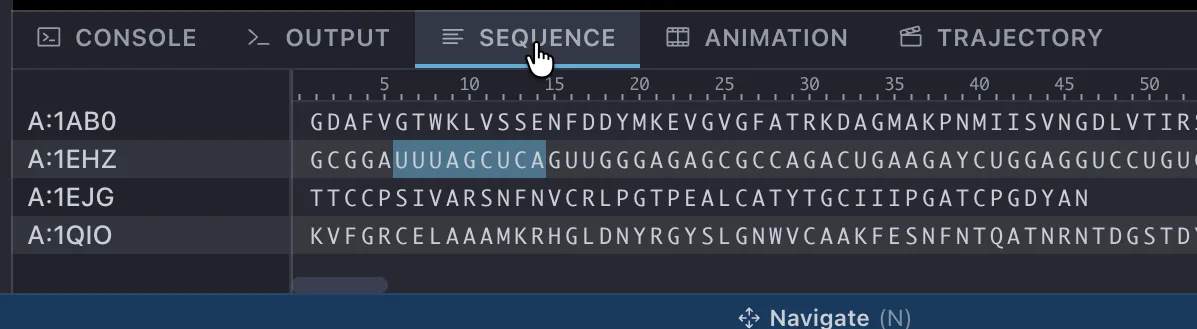
| Tab | Contents |
|---|---|
| Console | Command line (→ Console) |
| Output | Log display |
| Sequence | Display and selection of the amino acid / nucleotide sequences of molecules |
| Animation | Timeline editing for animations |
Enabling a plugin adds the following tab. The Console tab is also part of the Console plugin, and it disappears when the plugin is disabled.
| Tab | Contents | Plugin |
|---|---|---|
| Trajectory | Playback of MD trajectories | MD Tools |
Output
Shows the application log. File loading results and error messages appear here.
- Cmd+A (Edit > Select All) selects the whole log so that it can be copied.
Sequence
Shows the sequences of the loaded molecules, one grid row per chain. There is no per-molecule switching; the chains of all molecules in the scene are listed together.
Operations
| Operation | Action |
|---|---|
| Click | Toggles the selection of that residue and moves the molecular view to the position of that residue |
| Drag | Toggles the selection of the residues from the start point to the end point |
| Shift + click | Selects from the most recently marked position to the clicked position |
| Right-click | Opens the menu described below |
Right-click menu
| Item | Action |
|---|---|
| Toggle sel | Toggles the selection of that residue |
| Around 3 / 5 / 7 / 10 | Selects atoms within the given distance of the selection |
| Around Byresid 3 / 5 / 7 / 10 | Same as above, but selects whole residues |
| Unselect all | Clears the selection |
| Invert sel | Inverts the selection |
| Copy sequence | Copies the sequence to the clipboard in one-letter code (residues without a one-letter code become *) |
| Center here | Brings that residue to the center of the molecular view |
The boundary between the name column on the left and the sequence grid can be dragged to change the column width.
Known issue: selection updates are delayed
After the selection is changed, the highlight in the molecular view may take about 0.5 seconds to update. This is a known issue under investigation.
Animation
Edits the animation timeline. It uses a strip layout like Blender's, with each animation element shown as one strip.
- Drag a strip to move its start position, or drag its edge to change its length.
- Strips can be added, deleted and reordered.
- The play button plays the animation in the molecular view.
- The current time display is editable. Type a time and press Enter to jump to that point (→ Entering times).
- Selecting a strip shows the detailed settings of that element in the inspector on the right (type-specific settings and the generic property list).
- The start camera can be chosen in the timeline header.
- An element whose start-time reference (Relative to) cannot be resolved is shown with diagonal stripes and cannot be played until this is fixed.
To export the created animation as a movie file, use Rendering > Movie rendering... (→ Rendering window).
Note
While animation properties are being edited, the molecular view does not follow in real time. Play the animation to check the result.
Console
A command line for running CueMol operations as commands. Switching to PyM console on the toolbar
allows PyMOL commands such as fetch 1crn to be typed as they are.
This tab is part of the Console plugin, which is enabled by default (→ Console). It is the first tab of the bottom panel and stays in front until another tab is selected.
Trajectory
Plays MD trajectories loaded with File > Open MD Trajectory.... Frame blocks are shown on the timeline, with playback, frame stepping and seeking.
This tab is part of the MD Tools plugin, which is disabled by default. Enable it in Settings > Plugins > Installed (→ Plugins).
Verified against: CueMol3 2.4.0.546