MCP Server
A plugin that lets an AI client running on the same computer (Claude Code / Codex / Antigravity, etc.) operate CueMol3 through MCP (Model Context Protocol). It is disabled by default.
The client can call the same operations as the Console commands as tools. No API key is needed on the CueMol3 side; model usage follows the client's own settings.
Enabling it
Enable MCP Server in Settings > Plugins > Installed (see Plugins). Once enabled, MCP appears at the right end of the status bar and the server starts accepting connections.
The settings are in Settings > Plugins > MCP Server.
| Item | Default | Description |
|---|---|---|
| Accept connections | ON | Accepts connections. Turning it OFF closes the port (MCP stays in the status bar, and you can turn it back ON from there) |
| Port | 27182 | The port to listen on (1024-65535). The value is applied when you press Enter or move focus away (Esc restores the original value). A value out of range shows an error and is not applied. The listening state is shown below the field, and when the value is not the default you can restore it with Reset to 27182. After changing it, register the client again |
MCP in the status bar
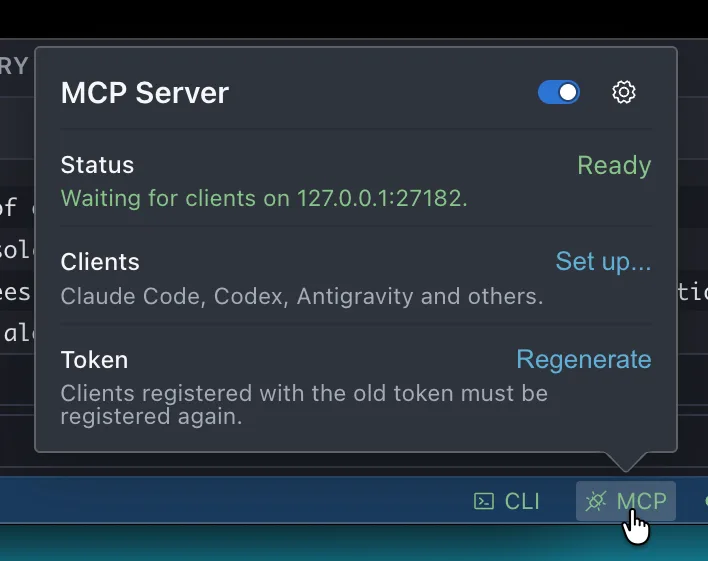
MCP in the status bar shows the state of the server. While a tool is running, it shows MCP: <tool name>.
| State | Meaning |
|---|---|
| Off | Not accepting connections |
| Starting | Opening the port |
| Ready | Waiting for connections from a client |
| Running | Running a tool |
| Error | The server could not be started (for example, the port is in use by another program) |
The popover that opens when you click it contains the following.
- A toggle switch at the top (the same setting as Accept connections) and a gear button that opens the settings page
- Status - the state, the address being listened on (
127.0.0.1:<port>), and the name of the running tool - Set up... under Clients - opens the dialog for registering a client
- Regenerate under Token - regenerates the token used for connections. Clients registered with the old token must be registered again
Registering a client
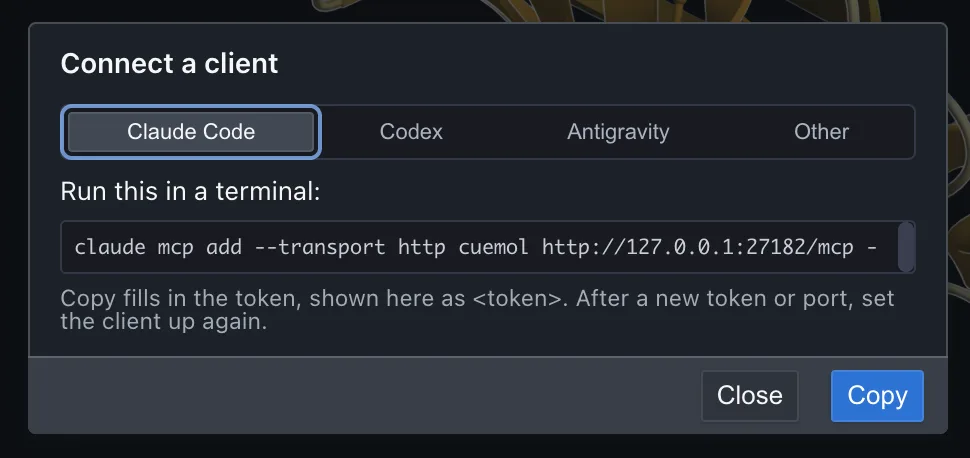
In the Connect a client dialog opened with Set up..., choose the client type (Claude Code / Codex / Antigravity / Other) to see the command or the configuration file entry used for registration. Use what you copy with Copy.
- While displayed, the token is hidden as
<token>; the actual value is filled in when you copy with Copy. - For Claude Code, run the displayed command (
claude mcp add --transport http cuemol ...) in a terminal. - For Codex, add it to
~/.codex/config.toml; for Antigravity, add it to~/.gemini/config/mcp_config.json. The Codex configuration includestool_timeout_secso that long-running renders are not cut off midway. - For Other, the URL (
http://127.0.0.1:<port>/mcp) and the header to send (Authorization: Bearer <token>) are shown. Any MCP client that supports Streamable HTTP and can send headers will work.
When you change the token or the port, register the client again.
What it can do
- Every operation corresponding to a Console command can be called as a tool.
There is also
capture_view, which returns the current view as an image. - You can list, create, switch and close scenes (
list_scenes/create_scene/switch_scene/close_scene).close_scenedoes not close a scene with unsaved changes (specifydiscardChangesto discard the changes and close it). You can also save withsave_sceneand open a.qscfile. - One tool call is grouped into one Undo step (the Undo name is
MCP: <tool name>). Calls are recorded in the History panel of the Actions view. - While an AI Agent instruction or a Console command is running, tool calls are refused. If the client cancels a call, the running operation stops as well.
- Errors are returned in a form the client can read (
{ok: false, error}).
Argument names changed in 2.4.0.546
Coloring and Paint operations (add_paint / set_paint / clear_paint / set_default_color /
set_renderer_coloring, etc.) take nodeId and nodeType
(renderer or object) instead of rendId. The argument molId, which refers to an Object, is now objId
(fromMolId of add_morph_frame is now fromObjId).
Security
- The server listens only on
127.0.0.1(inside this computer). - A token is required to connect. The token is stored in CueMol3's user data folder as a file readable only by the user.
- Requests from web pages are rejected.
- While listening, the port and token are written to
~/.cuemol/local-api.json(a file readable only by the user). tritium_cli also uses the same server.
See also
Verified against: CueMol3 2.4.0.546