Recording and replaying operations (Actions)
For each Undo step, CueMol3 records the operations (ops) performed in it. The record can be viewed in the Actions view on the activity bar. It can be saved to a qax file, replayed later, or applied to another Object as a macro.
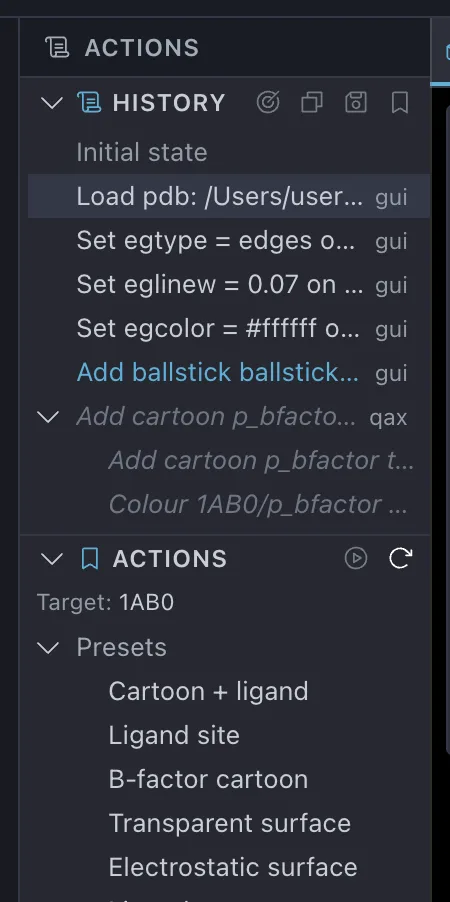
The Actions view has two panels.
| Panel | Contents |
|---|---|
| History | The Undo history of the active scene and the operations performed in each step |
| Actions | Presets bundled with the app and operations you have saved (User Actions) |
Recorded operations
Most edits made in the GUI, and edits made from the Console (native mode and PyM console), the MCP Server and the AI Agent, are recorded as operations that can be saved and replayed. These include property changes, file loading and fetching, Renderers and styles, coloring and Paint, selections, molecular editing, superposition, labels and measurements, crystal symmetry, morphing, animation, camera, style sets, electrostatic potential calculation, and copy & paste.
Edits to MD trajectories are not recorded yet.
The Undo / Redo display (including the Undo / Redo dropdown on the toolbar) is also built from the recorded operations. It shows details such as which Renderer was created and which property was changed.
History panel
Shows the Undo history of the active scene, one step per row.
- The Initial state row at the top is the start of the history.
- A step containing two or more operations can be expanded, which lists the operations performed, one per row.
- The right side of each row shows where the edit came from (
gui/cmd/pym/mcp/ai/qax). - Undone steps (on the Redo side) are shown in gray italics, and the row at the current position is shown in the accent color.
- Click a row to select it; Shift / Cmd / Ctrl + click selects multiple rows.
Panel operations
The following operations are available from the toolbar at the top of the panel and from the right-click menu on a row.
| Operation | Description |
|---|---|
| Go to step (Go to This Step / Go to Initial State in the right-click menu) | Repeats Undo / Redo until the state of the selected row is reached |
| Copy as commands | Copies the operations of the selected steps as Console (native mode) commands. Edit > Copy (Cmd+C / Ctrl+C) in the panel does the same |
| Save as qax | Saves the selected steps to a qax file |
| Save to Actions | Saves the selected steps to User Actions in the Actions panel (→ Saving as a macro) |
| Show in Inspector (right-click only) | Shows the selected step in the property inspector |
Display in the inspector
Double-click a step row (or press Enter), or click an expanded operation row, and the inspector shows its contents read-only. You can check the Undo label, the source of the edit, the time, the state (Done / Undone), and the name, command and arguments of each operation. Showing a step does not change the Undo position.
Steps for edits with no recorded operations (such as edits to MD trajectories) cannot be saved to qax.
Actions panel
A list of operations that can be replayed. There are two groups.
- Presets — presets bundled with the app
- User Actions — qax files you have saved. They are placed in the
actionsfolder inside the user data folder
Running
Select an item in the list and press Run on the toolbar (or Run in the right-click menu). Double-clicking does not run it.
- A macro is applied to the Object selected in the scene tree. If a Renderer is selected, its Object is the target. If nothing is selected and the scene has only one Object, that Object is the target. The target is shown in Target at the top of the panel.
- Running with multiple Objects selected is treated as a single Undo. Objects that could not be applied to are skipped and listed at the end.
- A qax file that is not a macro is applied by name to the Object it was recorded on.
Right-click menu
| Item | Description |
|---|---|
| Run | Runs it |
| Copy to User Actions | Copies a preset macro to User Actions |
| Rename... / Move to Trash | Renames a User Actions file / moves it to the trash |
| Open in Editor | Opens the qax file in an editor |
| Reveal in Finder | Opens the location of the qax file |
Presets
| Preset | Description |
|---|---|
| Cartoon + ligand | Shows the protein as a rainbow cartoon and ligands and ions as ball & stick (water is not drawn) |
| Ligand site | Shows the ligand and the residues within 5 Å of it as ball & stick, and centers the view on the site |
| B-factor cartoon | Shows the protein as a cartoon colored by B-factor |
| Transparent surface | Overlays a semi-transparent molecular surface on the protein |
| Electrostatic surface | Shows a molecular surface colored by electrostatic potential (APBS). Requires APBS and pdb2pqr to be configured (→ Configuring external tools) |
| Ligand contacts | Shows contacts and hydrogen bonds between the ligand and everything else as labeled lines |
| Symmetry mates | Shows the symmetry mates that fill the unit cell and the unit cell box. Targets an Object with crystal information |
| White background | Sets the background to white (for print figures) |
| Black background | Sets the background to black (for slides) |
| Render image | Renders the view at the scene's rendering size and saves it to the desktop as cuemol_render.png |
| 360 degree spin | Adds and plays an animation that rotates the view once |
| Front, side and top cameras | Saves the current view as front and the views rotated 90° around the y axis and x axis as side / top in the camera list |
The seven presets from Cartoon + ligand to Symmetry mates are macros applied to an Object, and the five from White background onward can be run without selecting an Object.
Saving as a macro
Select steps in the History panel and press Save to Actions to open a dialog for saving them to User Actions under a name.
- With Run on the selected object (save as a macro) ON, it is saved as a macro. A macro is applied to the Object selected when it is run.
- With it OFF, it is saved as an operation applied by name to the Object it was recorded on.
In the following cases the steps cannot be saved as a macro, and the dialog shows the reason.
- The selected steps span two Objects
- The selected steps operate on a Renderer that was not created within them (also select the step that creates that Renderer)
qax files
A qax file is a file in which recorded operations are written in XML (extension .qax).
- Save it with Save as qax or Save to Actions in the History panel.
- In native mode of the Console, replay it with
run file.qax(or@file.qax). Each recorded operation becomes one Undo.list_actionsshows the history, andexport_actions file[, first[, last]]writes it to a qax file.open_logalso records subsequent operations to a qax file. - From a terminal, replay it with
tritium_cli file.qax(→ tritium_cli). - qax files cannot be run in PyM console.
Limitations
- Edits to MD trajectories are not recorded.
- Only operations that take no arguments or exactly one Object can be made into macros.
- The History panel shows only the history of the active scene.
See also
- Side panels — Where the Actions view fits
- Console / MCP Server / AI Agent
- Edit menu — Undo / Redo
Verified against: CueMol3 2.4.0.546