Updating
The macOS (Apple Silicon) version of CueMol3 can check for new releases and replace itself from within the app. For the Windows / Linux versions, download the new release assets and reinstall (→ Download).
From 2.3.21.544 or earlier, install manually once
In-app updating was introduced in 2.4.0.546. CueMol3 2.3.21.544 and earlier do not have this mechanism, so install manually a build of 2.4.0.546 or later once. Subsequent releases can be installed from within the app.
Screenshot planned
Checking for new releases
- Check at startup: Shortly after launch, CueMol3 checks GitHub for a new release. If one exists, a notification is shown. If the check fails (for example, when offline), nothing is shown. The check can be turned off with Check for Updates at Startup in Settings > General > Updates (ON by default).
- Manual check: Use Check for Updates... in the application menu, or Check Now in Settings > General > Updates, to check at any time. If you are already running the latest version, this is indicated.
On Windows / Linux, Help > Check for Updates... is also present, but it only displays "Updates are not available in this build."
Installing the update
- Click Update in the new-release notification (or in the Settings row). Click Release Page to open the release's page on GitHub.
- The download starts and its progress is shown (Cancel aborts it). The downloaded file is verified.
- The Install Update dialog shows the release notes. Click Restart and Update: after the check for unsaved scenes, CueMol3 quits, is replaced with the new version, and restarts. If you click Later, you can continue afterward from Restart to Update in the notification.
- After startup, "CueMol3 has been updated to <version>." is displayed.
If the new version fails to start, the original version is restored and restarted, and a notification reports this. The restored version is not offered again by the startup check.
Release assets fetched by the app do not get the quarantine attribute, so the first-launch warning does not appear.
When Update is not shown
In the following cases the app cannot be replaced in place, so Update is not shown and only Release Page is available. Download the release assets and install manually.
- The app does not have write permission for the folder it resides in
- The app is running without having been moved from where it was downloaded (App Translocation). Move
CueMol3.appto theApplicationsfolder and launch it from there
Notification center
Update notifications are collected in the notification center, opened from the bell icon at the right end of the status bar. The bell is marked when there are unread notifications, and during a download its progress is shown next to the bell. New notifications also appear at the lower right of the screen.
Settings > General > Updates
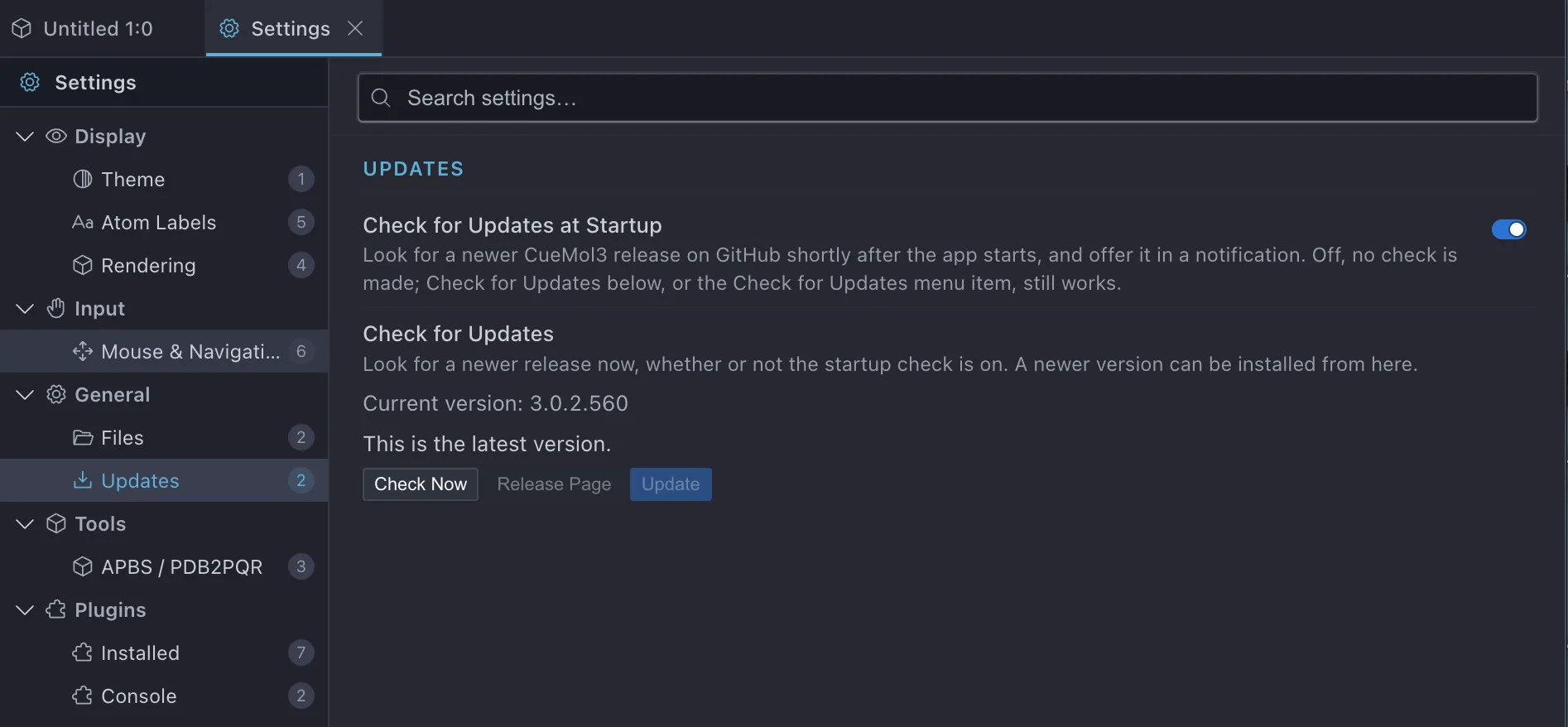
| Item | Default | Description |
|---|---|---|
| Check for Updates at Startup | ON | Checks for a new release after startup and notifies if there is one. Manual checks are still possible when OFF |
| Check for Updates | — | Shows the current version and status. It has Check Now / Release Page / Update buttons, from which the update can be run |
See also
- Installing on macOS
- Release history — main changes for each release
- Settings reference
Verified against: CueMol3 2.4.0.546